Mail Merge with PDF Attachments: Email Every Row of a Spreadsheet Its Own PDF
Send each customer, student or employee a personalised invoice, statement, certificate or letter as a PDF attachment, from your own mailbox. Pick a template, upload a spreadsheet, write the email, and send.
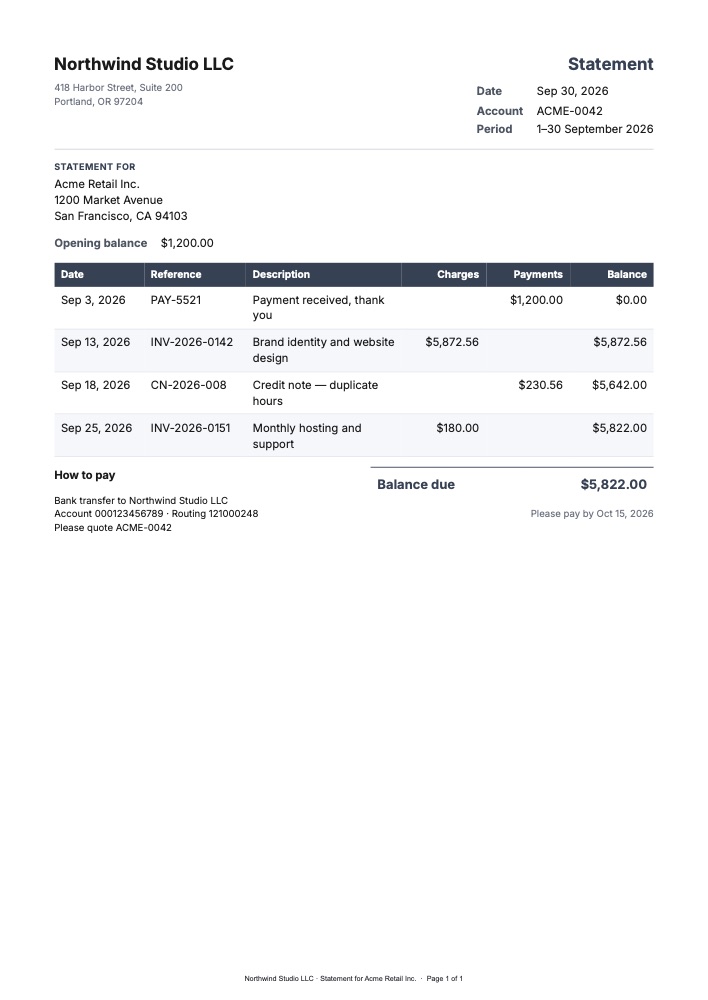
Every month the same job comes round: a spreadsheet of customers, and each of them needs their own statement, emailed as a PDF. Or two hundred course graduates, each waiting for a certificate with their name on it. Word’s mail merge can write the emails, but it can’t attach a different PDF to each one. So it ends up as an afternoon of exporting, renaming and attaching, or a fragile automation stitched together from three tools.
PodPDF mail merge does it in one place. Pick a template, upload the spreadsheet, write the email, and every row gets its own PDF attached, sent from your own mailbox.
How It Works
- A template. Design the document once in the template editor (or start from one of 32 ready-made ones), with fields such as
{{customer.name}}and{{amount}}. - A spreadsheet. A CSV or Excel file with one row per recipient and a column for their email address.
- The email. A subject and message, with the same
{{variables}}. - Send. Every row becomes a PDF, attached to an email to that row’s address.
Up to 100 recipients per campaign straight away, and up to 10,000 on request.
Sent From Your Own Mailbox
Campaigns don’t go out from a shared PodPDF address. You connect the mailbox the emails should come from: Gmail, Microsoft 365, Zoho, Brevo or any SMTP server. That means:
- Your address. Recipients see your address and reply to you.
- Your domain’s reputation. Mail is signed by your provider, so it reaches the inbox the way your normal email does.
- Your provider’s rules. Its sending limits apply (about 500 a day on Gmail, 10,000 recipients a day on Microsoft 365). For bigger lists, connect a sending service such as Brevo or SendGrid.
Before a mailbox can send a campaign, it has to pass a test email: we send you a short message with a PDF attached through it, so you know attachments get through. The password is stored encrypted and never shown again.
A Campaign, Step by Step
In the dashboard, open Mail merge → New campaign:
- Template. Choose the document everyone gets.
- Recipients. Upload the spreadsheet. The first rows are shown so you can check it was read correctly.
- Columns. Match each template field to a column. Matches are suggested from the column names, so
Customer namefills{{customer.name}}on its own. - Email. Pick the mailbox and write the message. The
{ }button inserts variables from the template or any column (Invoice #becomes{{invoice}}). - Review. Every row is checked before anything is sent. Bad addresses, missing values and duplicates are listed with their row numbers. You can step through the rows to see each email and PDF exactly as the recipient will, and send one to yourself.
- Send. Confirm that every recipient agreed to hear from you, and start.
You can close the page while it sends; we email you when it finishes. At the default two parallel connections, 10,000 emails take about 50 minutes, depending on how quickly your mail server answers.
What You Get Back
The campaign page, and a report you can download, show what happened to every row:
| Result | What it means | Charged |
|---|---|---|
| Sent | Your mail server accepted the email | Yes |
| Rejected | The server refused that address | No |
| Failed | The PDF could not be made, or the server refused the message | No |
| Unconfirmed | The connection dropped just after sending; it may have arrived, so it isn’t sent again | No |
| Skipped | An invalid or duplicate row, or the campaign was stopped first | No |
No email is ever sent twice. If a worker is interrupted mid-send, that row is marked unconfirmed instead of being retried, because a duplicate invoice is worse than a missing one.
Each email your server accepts costs one PDF credit ($0.01), so a campaign of 10,000 statements is $100.
The Same From the API
Everything after connecting the mailbox works with an API key, so a billing system can send its own statements:
curl -X POST https://api.podpdf.com/mailmerge/campaigns \
  -H "X-API-Key: your_api_key_here" \
  -H "Content-Type: application/json" \
  -d '{
    "template_id": "YOUR_TEMPLATE_ID",
    "connection_id": "YOUR_CONNECTION_ID",
    "input": { "csv": "Email,Name,Amount\nann@example.com,Ann Lee,1204.50\n" },
    "mapping": { "customer.name": "Name", "amount": "Amount" },
    "email": {
      "subject": "Your statement, {{customer.name}}",
      "body_text": "Hello {{customer.name}},\nYour statement for {{amount}} is attached."
    },
    "start": true,
    "consent": { "confirmed": true }
  }'
Follow it with GET /jobs/{id}, or subscribe a webhook to mailmerge.campaign.completed. See the mail merge guide and the API reference.
What People Send
- Monthly statements and invoices: one invoice or statement per customer, straight from the billing export
- Certificates: every graduate or attendee gets their certificate in their inbox
- Letters: renewal notices, price changes and welcome letters on your letterhead
- Payslips: each employee’s payslip, sent to them alone
- Receipts: annual donation receipts for every donor
Sending Responsibly
Mail merge is for people who expect to hear from you: your customers, students, employees and members. Every campaign asks you to confirm that, and records it. Add an unsubscribe link for anything that isn’t strictly transactional; the Unsubscribe link setting adds the header Gmail and Outlook look for. And send yourself a test first.
Mail merge is included on paid plans. Campaigns of up to 100 recipients work straight away. For bigger lists, choose Request a higher limit under Mail merge in the dashboard, say how many you need (up to 10,000) and what you’re sending, and we’ll reply within one business day.