Use Your Own HTML as a PDF Template (Beta)
Already have your invoice, statement or certificate as HTML? Paste it into a PodPDF HTML template, put a tag where each value goes, and generate PDFs by sending JSON. With loops, conditions, a live preview and the same API as every other template.
The template editor in PodPDF is built from blocks: drag in an address, an item table, a totals box, and you have an invoice without writing any code. That is the quickest way to a good-looking document if you are starting from nothing.
Plenty of people are not starting from nothing. They already have the invoice as HTML, written by a designer or lifted from the app that shows it on screen, and rebuilding it block by block is wasted work. HTML templates are for them: you bring the markup and the CSS, and PodPDF fills it with your data.
HTML templates are in beta. They work and you can use them today, but the tags and the editor may still change, and a few things from the visual editor are not there yet (they are listed at the end).
How It Works
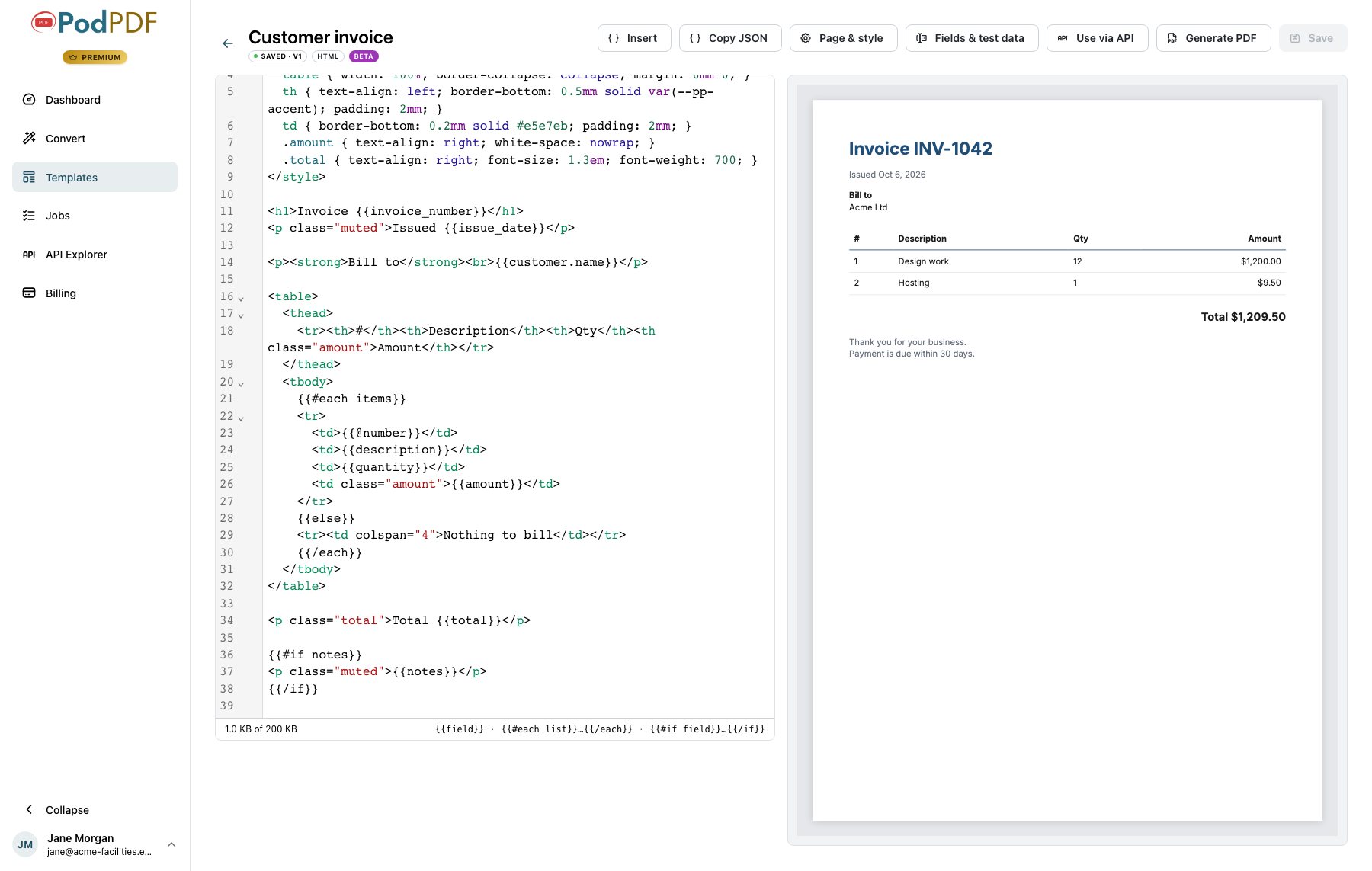
- In the dashboard, open Templates and click New HTML template. It opens with a short working invoice, so you can see every kind of tag before you replace it.
- Write or paste your HTML and CSS on the left. The page on the right is the PDF as it will be printed, and it updates as you type.
- Put a tag where each value from your data goes.
- Click Save. From here it is a template like any other: Generate PDF fills it from a form, Use via API gives you the request, and it works in mail merge and with Zapier, n8n and the other integrations.
The Tags
There are three, and that is the whole language.
<h1>Invoice {{invoice_number}}</h1>
<p>Bill to {{customer.name}}</p>

<table>
  {{#each items}}
  <tr>
    <td>{{@number}}</td>
    <td>{{description}}</td>
    <td>{{amount}}</td>
  </tr>
  {{else}}
  <tr>
    <td>Nothing to bill</td>
  </tr>
  {{/each}}
</table>

{{#if notes}}
<p>{{notes}}</p>
{{/if}}| Tag | What it prints |
|---|---|
{{field}} | The value. Money, dates, numbers and percentages are formatted for you in the template’s language and currency, so 1200 in a money field prints as $1,200.00. |
{{#each list}} … {{/each}} | Its content once for every row of a list. Inside it you use the list’s own columns by name, and {{@number}} counts the rows. An optional {{else}} part is printed when the list is empty. |
{{#if field}} … {{/if}} | Its content only when the field has a value, with an optional {{else}}. |
A tag can go in the text, or inside a quoted attribute such as class="{{status}}" or style="color: {{brand_colour}}".
The Insert button in the editor writes these for you: pick a field and it drops the tag at the cursor, pick a list and you get a whole {{#each}} block with a cell for each column.
Fields and Test Data
Every tag names a field, and the fields are the JSON you will send. Open Fields & test data to see them: each has a key (invoice_number), a type (text, money, date, list and so on) and a Required switch. If you type a tag for a field that does not exist yet, this panel offers to add it.
The Test data tab holds the example values the preview uses. They are saved with the template, so the request shown in Use via API already contains a realistic example.
Rename a field and every tag that uses it is renamed in your HTML at the same time.
Images and Fonts
A PodPDF template is self-contained, so that the same data always makes the same PDF and nothing can go missing on the day a CDN is slow. That gives two rules for images:
- A fixed image, such as your logo: use Insert → Upload an image. It is stored with your account and placed with a tag.
- An image that changes per document: add an image field and send an
https://address (or adata:image/…value) in your data. Write it as<img src="{{photo}}">.
For type, set the default font under Page & style, or name one in your CSS. Inter, Roboto, Merriweather, Roboto Mono and Great Vibes are built in. Text in Chinese, Japanese, Korean, Arabic, Thai and other scripts prints without any setup.
Calling the API
The request is the same as for any PodPDF template: the template ID in the address, the values in data.
curl -X POST https://api.podpdf.com/templates/YOUR_TEMPLATE_ID/render \
  -H "X-API-Key: $PODPDF_API_KEY" \
  -H "Content-Type: application/json" \
  -d '{
    "data": {
      "invoice_number": "INV-1042",
      "customer": { "name": "Acme Ltd" },
      "items": [
        { "description": "Design work", "amount": 1200 },
        { "description": "Hosting", "amount": 9.5 }
      ],
      "notes": "Payment is due within 30 days."
    }
  }' \
  --output invoice.pdf
If a required value is missing or the wrong type, you get one response listing every problem, and nothing is charged. A render that succeeds costs one PDF, the same as any other: $0.005 on a monthly plan, or $0.01 from a credit pack.
How This Differs from HTML to PDF
PodPDF already converts HTML to PDF: you send a complete page, you get a PDF. That is still the right tool when your own code builds the page.
An HTML template moves the page out of your code:
- You send data, not markup. The request is a few fields of JSON. Changing the design means editing the template, not deploying your app.
- The data is checked. Required fields, numbers and dates are validated before anything is printed.
- Formatting is handled. Money, dates and numbers follow the template’s language and currency.
- Anyone can use it. A colleague can fill the form in the dashboard, or send one to every row of a spreadsheet with mail merge, without touching HTML.
What to Know Before You Start
- Scripts do not run. A template is HTML and CSS only. Charts drawn by JavaScript need to arrive as images.
- Nothing is loaded from the internet. No linked stylesheets, web fonts or remote images. Put the CSS in a
<style>block and use uploaded images or image fields. The editor lists anything in your markup that will not appear in the PDF, with the line it is on. - Values are always printed as text. HTML inside your data is shown as written, never run, so data from customers is safe to print.
- Links in the PDF can be web, email or phone addresses.
- Paper size and margins are set under Page & style: A4, US Letter, labels, custom sizes, or a receipt whose length follows its content.
- Limits: 200 KB of HTML per template, up to 1,000 rows in a list, and up to 25 pages per PDF.
Not There Yet
These are the gaps we know about while HTML templates are in beta:
- Totals are yours to send. The visual editor adds up line items, tax and discounts. An HTML template prints the values it is given.
- No barcodes or QR codes. Use a visual template for those, or send the code as an image.
- No import or conversion. You paste your HTML in; there is no file upload, and a visual template cannot be turned into an HTML one.
If one of these is what stops you using it, tell us. That is what the beta is for.
Try It
Open Templates in the dashboard and click New HTML template. Building and previewing a template is free; you only pay for the PDFs you generate.
The templates guide in the API docs has the full reference for the tags.